
payroll
Wyatt Trapp, Inc.
Setting Up Your Payroll Account
payroll
Wyatt Trapp, Inc.
Setting up your payroll account
step two
Setting Up Your Payroll Account
About This Step
This step is the most involved, and will take the longest. It is critical that you do this step completely before your first day of work.
What You’re Going to Do
- You’re going to log in to the payroll company’s website and enter your tax information, direct deposit, contact info, etc.
- You’re going to download the time keeping app and watch a training video to learn how to use it
- You’re going to review and acknowledge some of the rules pertaining to payroll (like overtime, meal breaks, etc.)

eBacon
The payroll company we use is called eBacon. A short time after we have our initial onboarding conversation (from Step 1,) you will receive an email from them directing you to their website where you will set up your payroll account. Check your spam folder for this email. This should also be done on a desktop or laptop.
You’ll need to know:
-
-
The information you wrote on your W4 (dependents, withholding, etc.)
-
Your bank account account number and routing number (if you are choosing to be paid via direct deposit.)
-
You’ll also be prompted to set a new username and password. Don’t lose it! You’re going to need it.
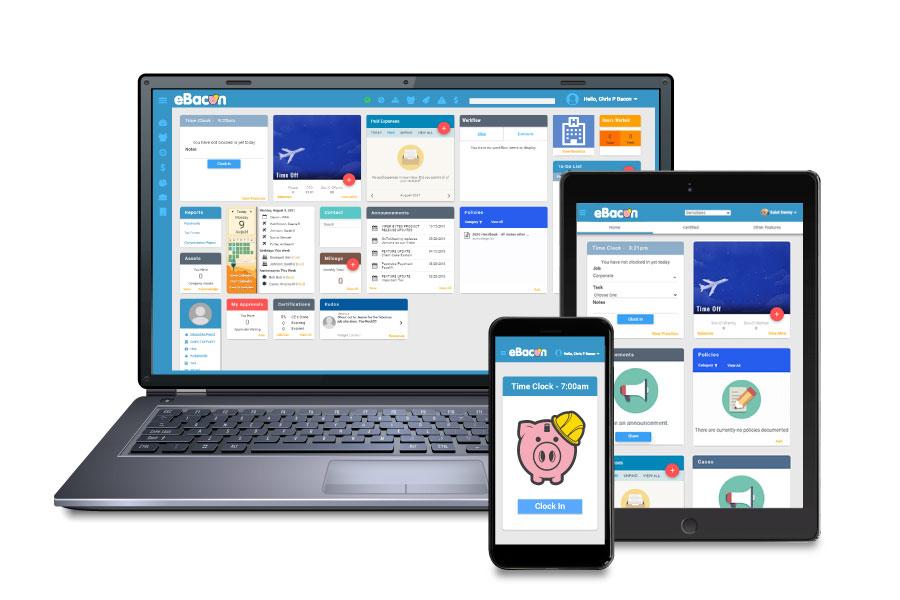
Online Payroll Portal
Once you complete the setup, you’ll have access to their online portal, which will allow you to see all of your payroll information, your check stubs, etc. For example, when tax time rolls around, your tax forms will be available here.
Find the email from eBacon and follow the instructions for setting up your payroll account before moving on. (It might be in your spam folder!)

The process of setting up your account is pretty straightforward, but if you have any questions, call 818-930-2682.
step two
(and 1/2)
Setting Up Your Payroll Account
payroll app
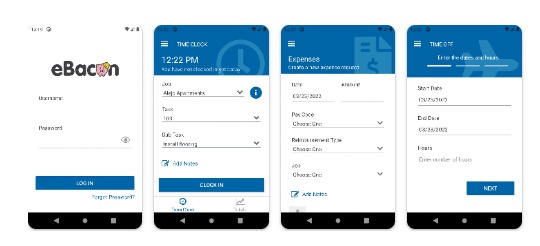
Use the links below to download the timekeeping app,which is what you will use to punch in and punch out, view your paychecks, and get reimbursed for personal vehicle use.


payroll app
Use the links below to download the timekeeping app,which is what you will use to punch in and punch out, view your paychecks, and get reimbursed for personal vehicle use.
How to use the app
Once you’ve downloaded the app, enter the user name and password you created when you set up your payroll account and then watch the brief training video.
Some Important Things About Timekeeping
1. overtime
You may not ever work overtime without approval from your supervisor. At the 8 hour mark, it is your responsibility to ask if you are approved to work overtime. Do not keep working after the 8 hour mark, unless your supervisor specifically says that overtime is approved.

2. Taking Breaks
State Law requires that all employees must clock out after no more than 5 hours and take an unpaid 30 minute break.
Employees must also take two paid 10-minute breaks sometime during any four hour period. Because these breaks are paid, you do not need to clock out for them.
The complete Meals and Breaks policy is below. You are responsible for reading, understanding, and following this policy. (I mean, it is the law, after all.)
3. About Jobs and “Tasks”
The jobs you will be working on are public works jobs in which payroll is strictly regulated by the Department of Industrial Relations. Their regulations require that we report the pay for each job each week, and they also require different pay rates for different types of work (called “tasks” in the app.)
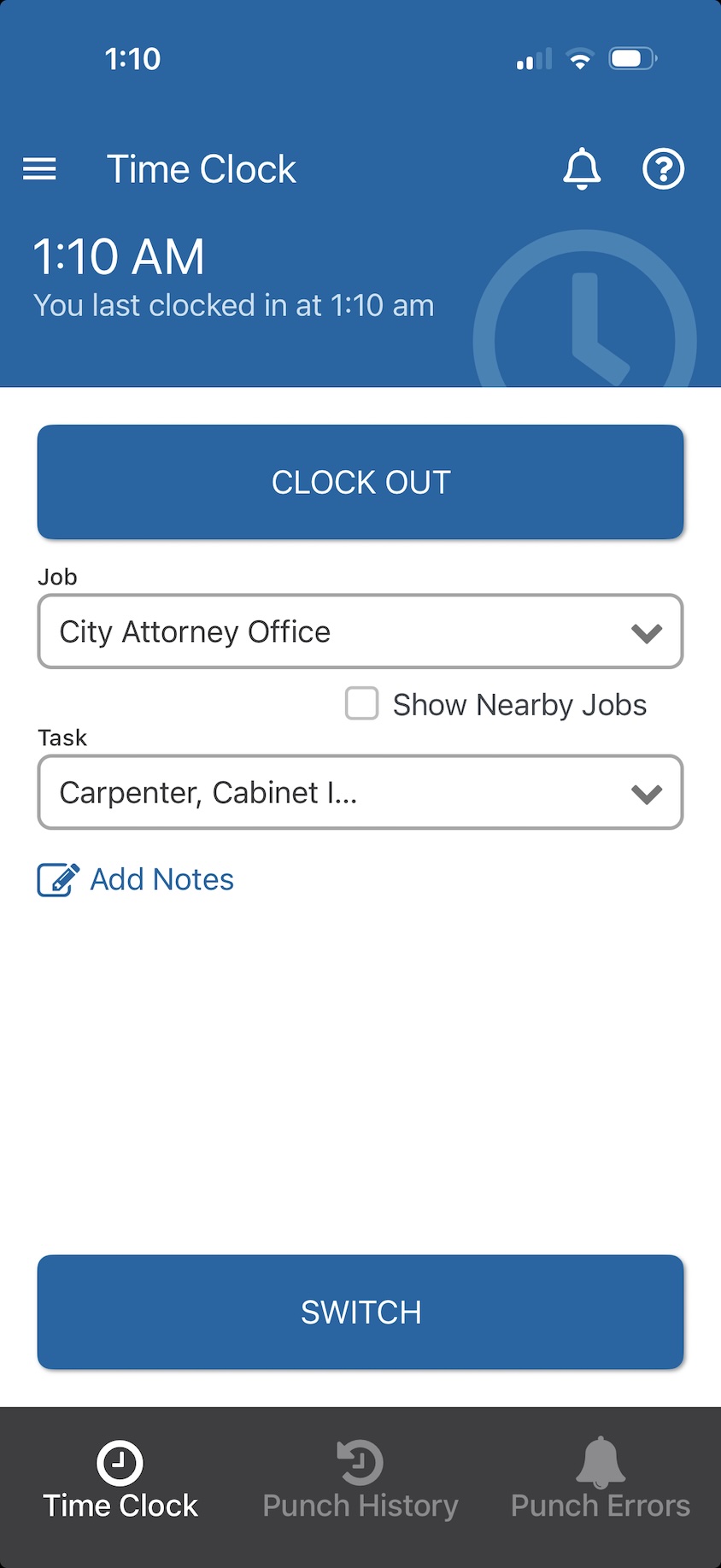
When you clock in, you will see two drop down menus: One that says “Job”, and another that says “Task.” We will tell you the name of the job you are on, so make sure to select that job when you clock in (do not select “Field.” If you are going to be performing Carpentry, clock in as “Carpenter.” If you switch to Masonry, select “Cement Mason,” and hit the button that says “Switch.”
We will provide some verbal training on this as well. The descriptions of each trade and their rate are available on the DIR Website.
4. GPS
The app notes your specific location and time of day when you punch in, punch out, switch tasks, or leave the jobsite. It does not track your movements, and it does not track your location any other time, but you must configure your phone’s settings so that your location is only shared while using the app.
-
- If you are sent to do something job related, like pick up materials, put a note in the app (see the training video.)
- If you leave from home and have to pick up materials, clock in when you reach the place you are picking up materials from.
- If you are using your personal phone to run the app, you may request a $25 re-reimbursement every month through the online portal. You must include a receipt that shows a phone bill payment in your name.

Complete, Written Policies
You will receive the complete written policies (and other legally required notifications) via email. When you do, you will be prompted to acknowledge that you have read them by providing a digital signature.

Before going to the next step
Make sure you have done these things:
- Filled out and submitted your W4.
- Logged into the online portal at my.ebacon.com and completed the entire set up process there.
- Made a note of your eBacon username and password. (You will need this, so make sure you know it.)
- Installed the eBacon app on your phone.
- Configured the location settings so that the app only tracks you while you are using it.
- Watched the app training video and know the following:
- How to clock in and out
- How to switch tasks
- How to add a note to your punch in/out,
- That you may only clock in and out on site, unless you are required to do something work related on the way to or from the site.
And confirm that you agree to the following:
- I will not work any overtime unless it is explicitly approved by my supervisor.
- I understand that if my supervisor continues working past eight hours, I must stop until he or she explicitly authorizes overtime.
- I have read and agree to follow the meal and break policy.
- I agree to stop for a 30 minute break after being on the clock no more than 5 hours, even if your supervisor doesn’t indicate that it is time for a meal or break.
- That to receive a stipend for personal phone use, I must submit a reimbursement in the payroll portal with a receipt for your phone bill in my name.
- I understand that WTI has requested that I change my phone’s location settings to that I am only being tracked at work.
- I understand that my location is only being recorded when I punch in or out, or switch tasks.